Save as you go.
Changes save automatically. The editor shows when your note is saved.

Features
From the first sentence to the final edit. A closer look at the tools that help you get there.
Start writing01 / Write
Start typing in Markdown. Add a heading, make a list, or drop in a code block without leaving your draft.
Open the preview when you want to see the formatted page.
# A small beginning

A little space to **think**.

- [x] Capture an idea
- [ ] Find the right words
- [ ] Make it your own02 / Focus
Focus mode dims the text around the sentence or paragraph you’re working on. Keep your place in a longer draft.
Want more space? Zen mode hides the sidebars so your writing fills the window.
Some ideas need a little time. A few words on a page are enough to begin.
Stay with the thought in front of you.
The rest can wait until you’re ready.
03 / Organize
Separate work and personal writing into workspaces. Keep a project’s notes in folders, and drag those folders into the order that suits you.
Write tags like #ideas or #ideas/essays to connect notes across folders. Nested tags let you browse a whole topic or a smaller branch.
Connect notes with wikilinks when one idea leads to another, even across workspaces.
04 / Templates
Save reusable Markdown for journals, meeting notes, or project briefs. Choose a template for one note, or set a folder default.
Add @date or @datetime to fill in the local date or time when a note is created. Type @ in the editor to insert either value while writing.
# Journal — @date

## What’s on my mind

## One thing to try

- [ ] 05 / Tasks
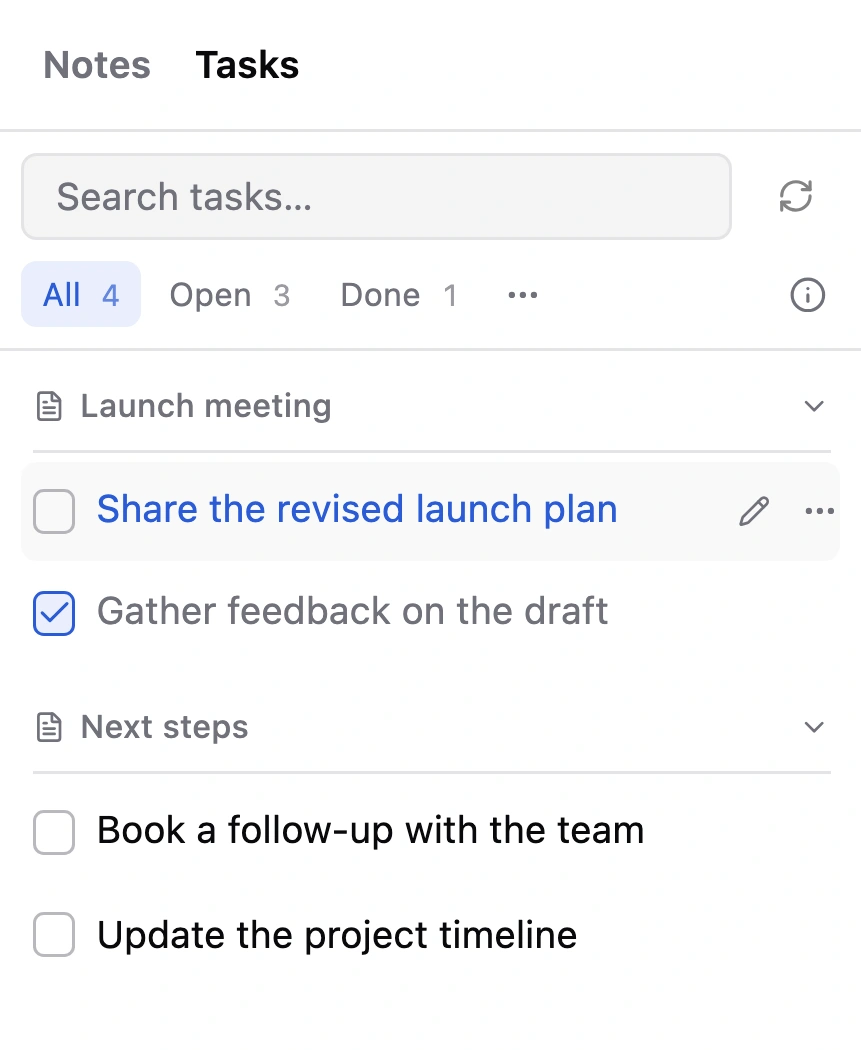
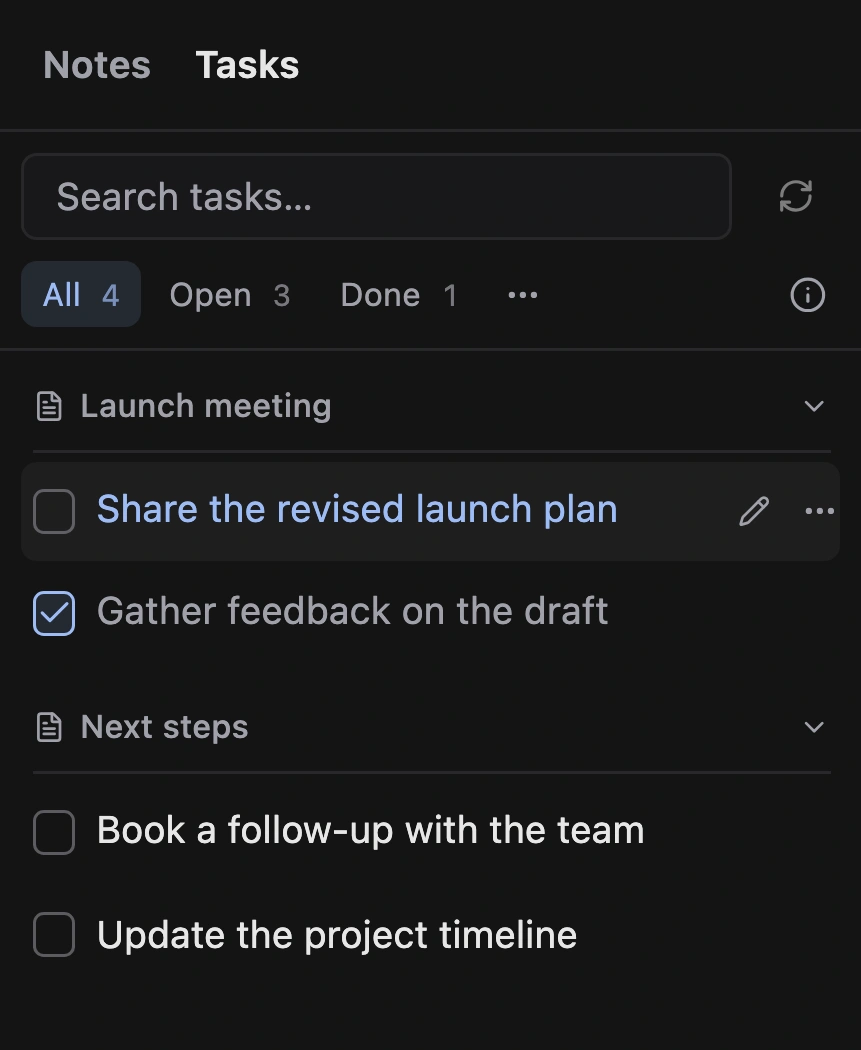
Open a folder’s Tasks tab and choose “Find tasks” to collect actions from its 25 most recently updated notes. AI functions must be enabled for each note you want to scan.
Tasks are grouped under collapsible note headings. Search the list, switch between All, Open, and Done, and check off work as you finish it.
Click a task to open its note and select the source passage. Edit its wording or show passages from the row’s controls. Choose Refresh to scan again; your edits and completed tasks are kept.
06 / AI writing
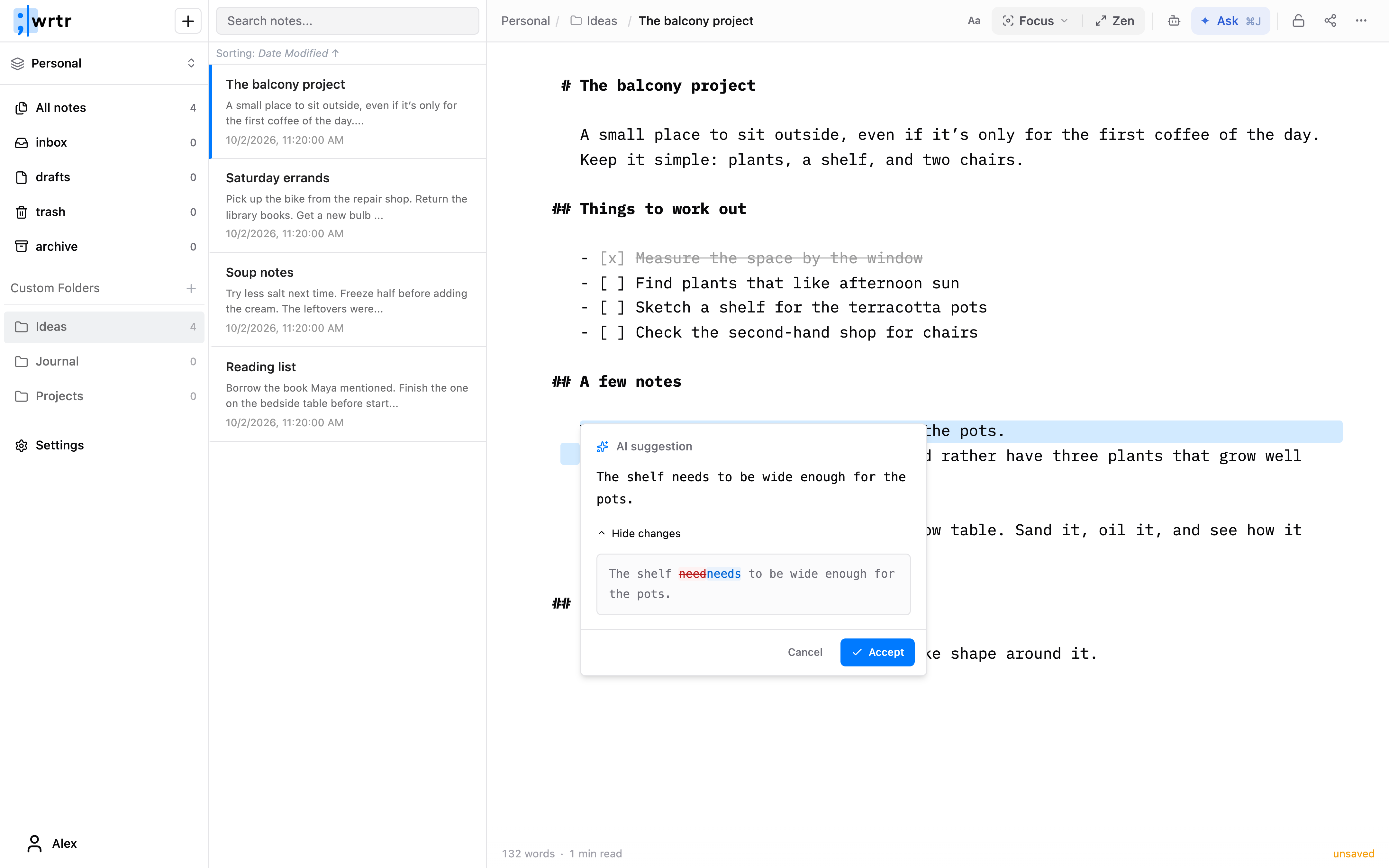
Select a passage and ask AI to refine it. Give it instructions for the note’s tone or context.
Use “Help me start” to turn rough thoughts into an outline or opening. Use “Help me finish” for a draft review with suggestions for clarity, repetition, and structure.
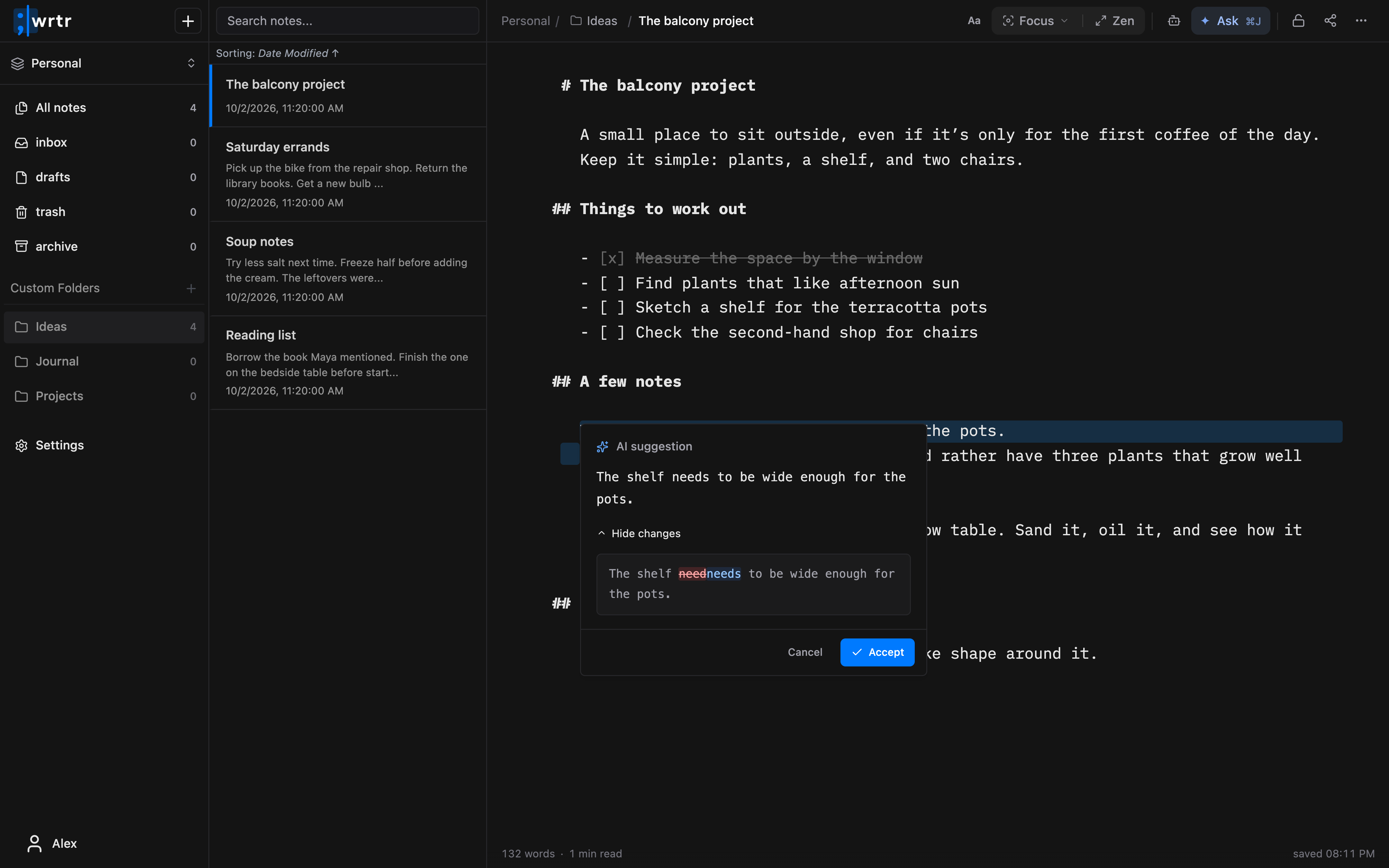
Review the changes before applying them. Accept what helps, skip what doesn’t. AI is optional.
07 / Privacy
Encrypt a note’s title and text on your device before they’re saved. Set a folder or workspace to encrypt new notes by default.
Saved versions of encrypted notes stay encrypted, too. Keep your encryption key somewhere safe so you can read them again.
AI is off by default for encrypted notes. If you enable it, your text is sent to an external AI service.
Changes save automatically. The editor shows when your note is saved.
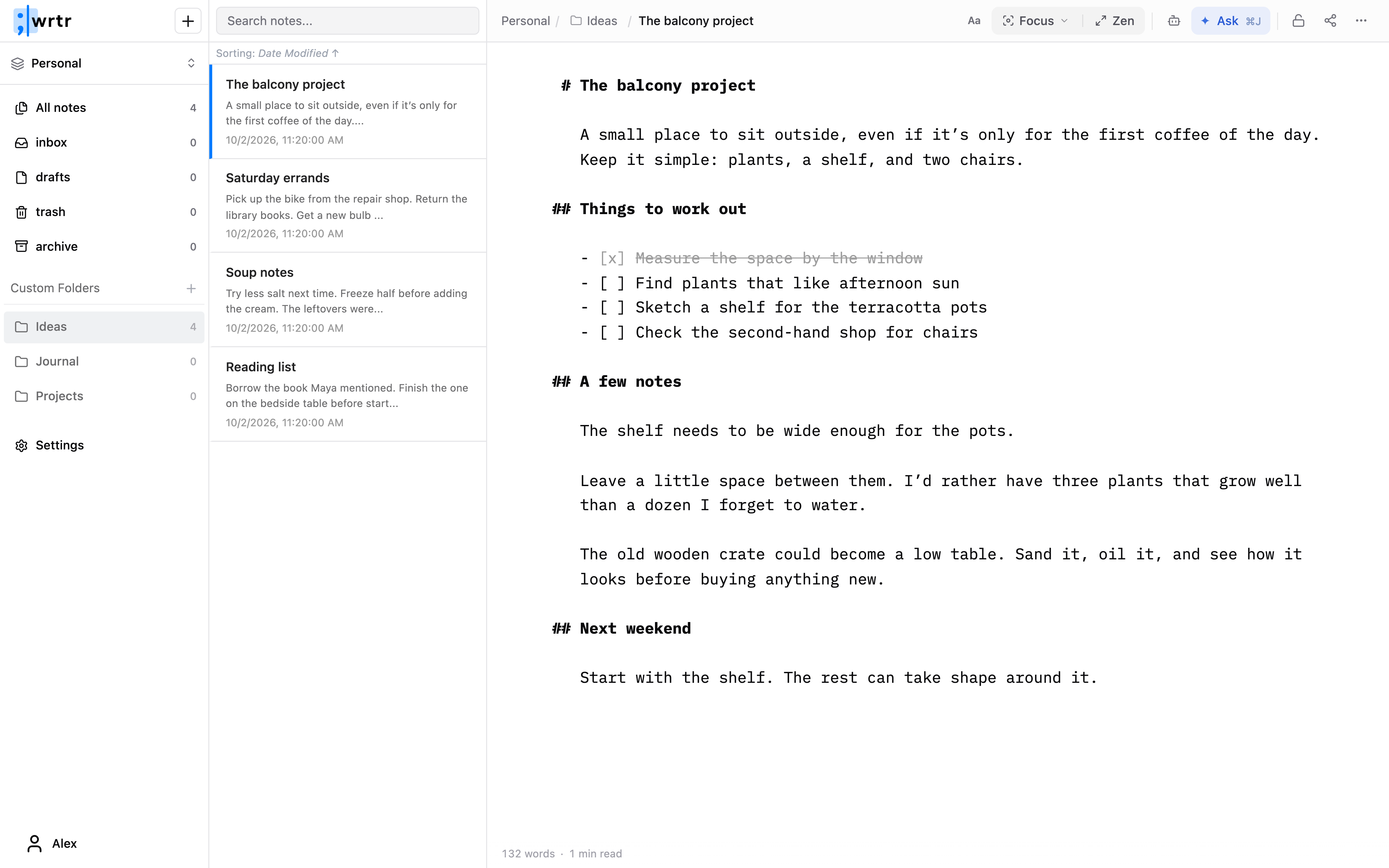
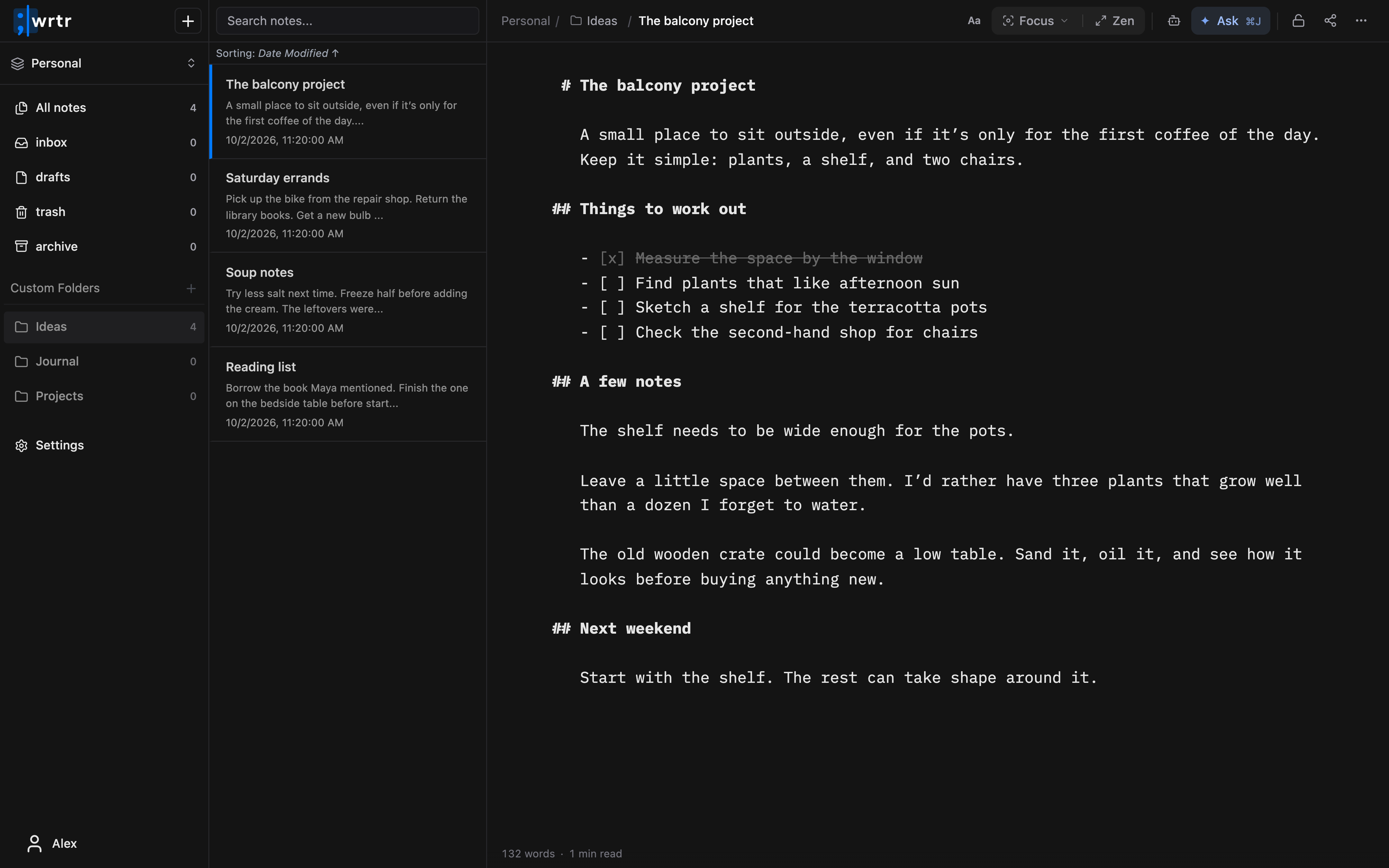
Choose a light or dark theme. Turn on Vim mode if that’s how you like to edit.
Use the formatting toolbar or keyboard shortcuts for headings, lists, links, and more.
Check the word count and estimated reading time as your draft grows.
Include images, links, task lists, and highlighted code in your notes.
Create a public link to a note, with optional password protection.
Preview saved versions in edit history and restore an earlier one. The version you replace stays in history, too.
Download a note as Markdown for further editing or as a formatted PDF to share.
Browse All notes across folders in your workspace. Search and sort the list to find what you need.